Facial Animation and Stitching

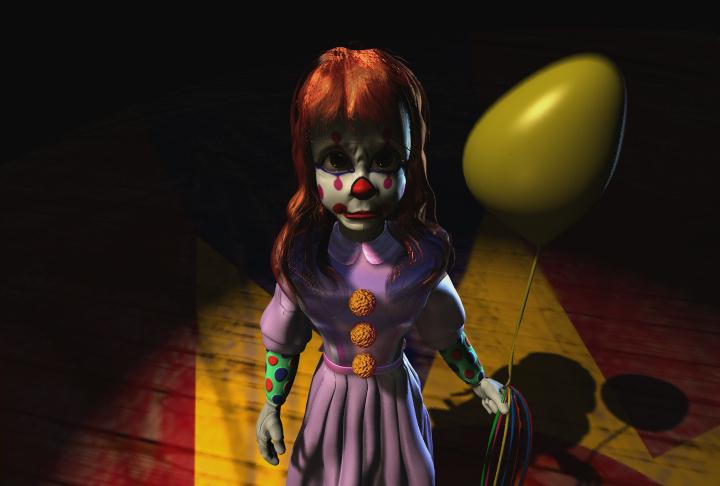
Bingo the clown, AliasWavefront developed by Chris Landreth 1998

Please click here to download demo files....

See an animation....

This demo will shows you how the facial expressions were created for the Balloon Girl and how Stitching was used to keep all 18 surfaces of the face together.
 

Part 1: Creating the blendshapes.

  1. Open the file blendshapeDemo.mb.
  2. figure 2.
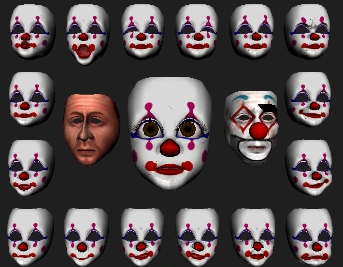
    Each of the faces are made up of 18 surfaces.

    In order to get realistic facial expressions, we had to create a realistic face.  In the center of the screen you can see the base version of the balloon girl's head.  To her left is Dave's base head and to her right is Pinhead's base head.  Around the border are 16 different versions of the Balloon Girl's head.  Each of the heads contains one facial muscle fully flexed.  We then blended between each of the facial muscles and the base head to generate the different facial expressions. 
  3. Open the Outliner window and expand the node facialMuscles.
  4. Holding the Left Mouse Button, drag select the nodes from OpenJaw to Pinhead.
  5. Holding Shift, select BaseHead.
  6. Create a blendshape node, Deformations -> Blendshape.
  7. Open the Layer editor and hide the Facial Muscles layer.
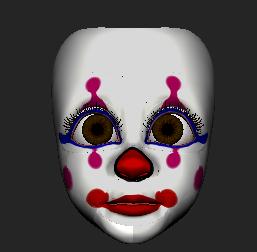
  8. Zoom in on the face by holding Cntrl + Alt and drawing a box from the Top Left corner of the Center head to the Bottom Right corner. (figure 3.)
  9. figure 3.
  10. Open the Blendshape Window and scroll down to blendShape9.
  11. You can see that we have full control over the character's expressions because we have the ability to flex any of the facial muscles by simply dragging a slider.  We are not limited by preset "Happy" or "Sad" expressions.
     
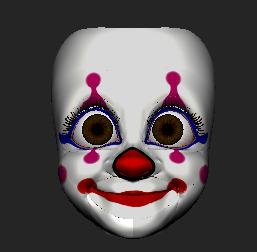
    1. Create a happy expression. (figure 4.)
      • SmirkLeft = 0.8
      • SmirkRight = 0.8
      • Frontalis = 0.7
      • Mfront = 0.7
    2. In the Blendshape Window, hit the Reset All button in the blendShape9 section.
     
    figure 4.
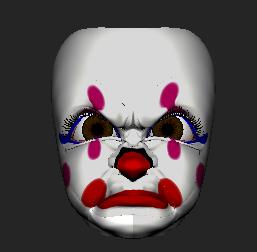
    1. Create an angry expression. (figure 5.)
      • Wince = 1.0
      • Grimmace = 0.6
      • Furrow = 0.7
      • SquintL = 0.4
      • SquintR = 0.4
     
     
    figure 5.


  1. Open the Layer Editor.
  2. Hide the BlendHead layer.
  3. Show the FinalHead layer.
  4. Display the sound Scene3, Display -> Sound -> Scene3.
  5. Once we had the character's facial structure setup, we started to animate her.  Here we have a an animated version of the Balloon Girl's face.  Animation was made easy in Maya thanks to powerful tools such as the Timeline.  You can see that I've just displayed a sound in the Timeline.  As I scrub in the Timeline, I can hear the sound file.  But not only can I hear the sound, I can see it in the form of a waveform.  Being able to see my sound file helps me more precisely set my keyframes and visually see when a sound starts and stops, and how loud it is.

  6. Set the Playback Range to 220 - 320.
  7. Set the Playback Speed to Normal,

  8. Window -> General Prefereces -> Animation -> Playback -> Playback Speed.
  9. Scrub through the Timeline using the Middle Mouse Button.
  10. Playback the animation.
  11. Select all of the geometry and set the display resolution to low res, Hotkey : 1.
  12. Playback the animation.
  13. While playing back the animation, open the BlendShape editor and scroll to the FacialMuscles1 layer.
  14. One of the great advantages in using this facial muscle technique was that Dave and Pinhead both shared the same geometric topology as the Balloon Girl.  What this means is that all of the facial muscles that we modeled for the Balloon Girl can apply seemlessly to the other characters.  By simply draging a slider, I can change the character from the Balloon Girl to Dave or Pinhead and all of the animation, all of the facial muscles simply start to work with the different characters.  This saved us alot of time and gave us alot of flexibility because we could quickly model new characters without having to model new facial muscles.
     

  15. Drag the Dave slider to 1 during playingback to transform the head into Dave.
  16. Drage the Dave slider to 0 and the Pinhead slider to 1 to transfor the head into Pinhead.
  17. Playback the animation.

Part 2: Stitching the face together.

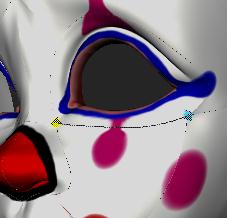
One of the challenges we faced while working on Bingo was that the character's heads were made up of 18 different surfaces.   While this gave us alot of flexibility and control in the modeling of the heads, it posed a difficult and common problem, how do you keep the surfaces looking seemless?  To keep the character's faces seemless we used a tool in Maya called "stitch".  What "stitch" allowed us to do was ensure that our surfaces remained seemless even during the most complex deformations.

 
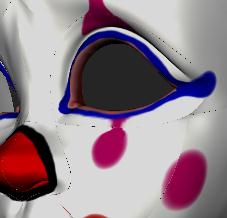
  1. Position the camera similar to (figure 6.)
  2. Edit Surfaces -> Stitch Tool Options
    • Blending
      • Position = ON
      • Tangent = ON
    • Weighting Factor on Edge 1 = 0
    • Weighting Factor on Edge 2 = 1
    • Samples Along Edge = 48
When stitching surfaces, the edge with a Weighting of 1 will not move while the edge with a Weighting of 0 will move.  In this case, the first edge picked will move to meet the second edge.
 
figure 6.
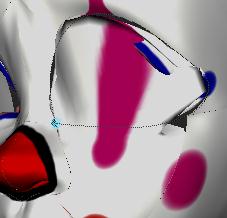
  1. Stitch the top edge of the cheak to the outer edge of the eye. (figure 7.)
 
figure 7. 
  1. Move the blue locators until the stitch looks like (figure 8.)
  2. Use point snapping (Hold Down Hotkey : V) to move the locators to a specific isoparm.
  3. Hit the Enter key to complete the command.
 
figure 8.