Character Skinning Demo
    This demo focuses on Maya's ability to use overlapping deformers to skin up the shoulders and arm of a character.
     
    Part I:  Setup Part II:  Demo
    1. Load skinChar.mb into Maya.
    2. Go to a perspective view.
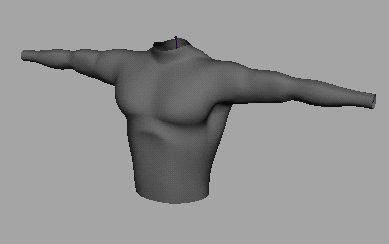
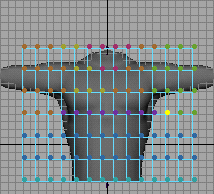
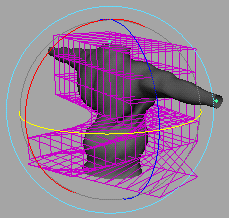
    3. Go to shaded mode (5 on the keyboard) and twirl the camera around to show the body we're going to skin up.  (fig 1)
    4. Select  different parts of the body and mention how this body is made up of 28 different patches.
    5. Turn off your joint pick mask by clicking off the joint icon in the pickmask area.
    6. Click and drag over the entire geometry to select it.
    7. Hit 1 on the keyboard to put it in low resolution mode.
     
    fig. 1
     
    1. Switch to a front view.
    2. Go to wireframe mode by hitting the 4 key on your keyboard.
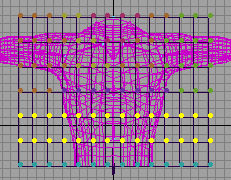
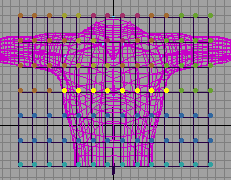
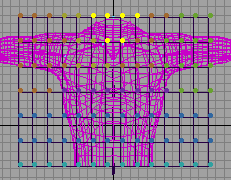
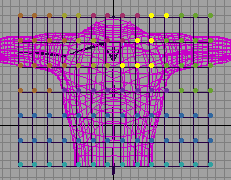
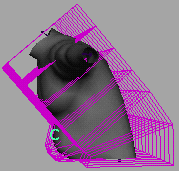
    3. When approaching a complicated area to skin like a shoulder, we found that using lattices really helped make the skinning much easier.
     
    1. Hit F8 on the keyboard to go to component mode.
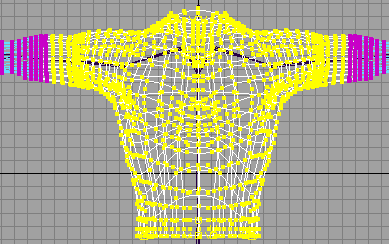
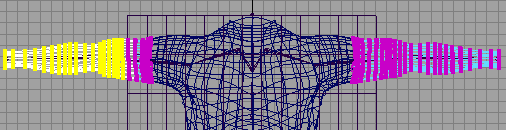
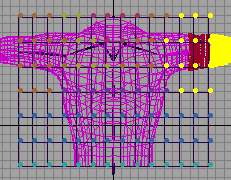
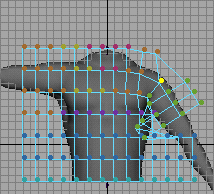
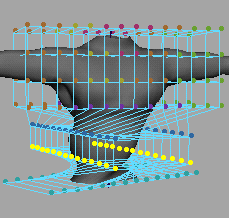
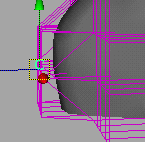
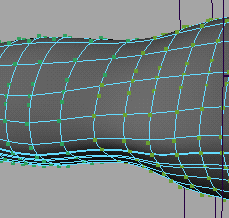
    2. Click and drag with the left mouse button to select the cv's designated to the right (fig 2).
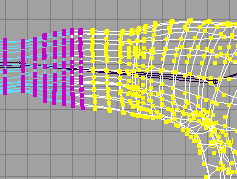
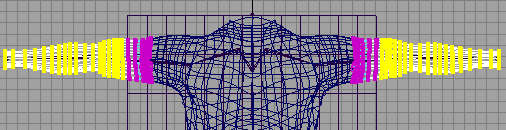
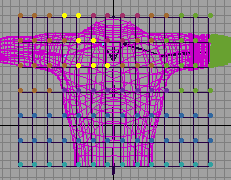
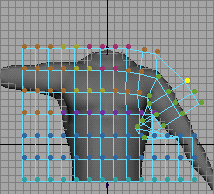
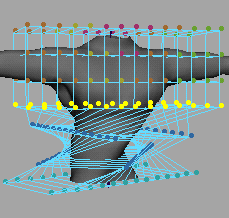
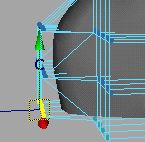
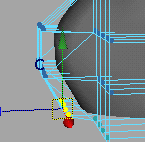
      • Note:  You can tell where to select on the arm by making sure to stop your selection after the two slanted rows of cvs on the arm. (fig 3).
      • Note:  if you're having trouble selecting the required cv's using a box-pick, you can go Edit-->Quick Select Set-->Torso Set.
      fig. 3
       
     
    fig. 2
     
     
    Notice how in figure 3 the cv's that are pretty close to being straight vertically aren't selected, but the ones to the right of them which are slanted are selected.  That is your cutoff point.
     
     
    1. Make sure you are in animation mode.
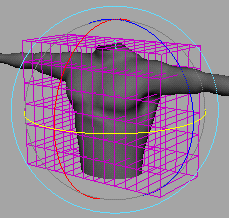
    2. Go  Deformations-->Lattice.
    3. Go to a perspective view.  Spin the camera around to show how the lattice was created around the selected cvs.
    4. Make sure the channel box is visible.
    5. With the lattice selected, and the channel box up, change the divisions.
    6. Now we're going to perform the bind skin where we bind the lattice and the rest of the cvs which aren't in the lattice to the joint.
    7. Go back to the front view.  This makes things much easier for right now.
    8. Make sure you're in wireframe mode.
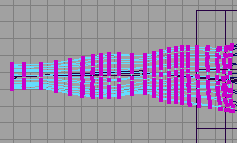
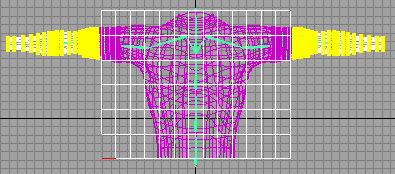
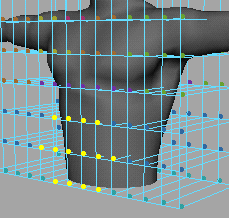
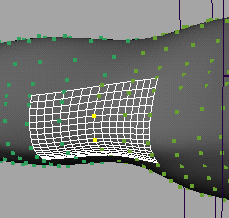
    9. Click with the right mouse button over the right arm.  This will bring up a context sensitive marking menu.  Sweep the mouse to the left and choose Control Vertex.  This will hilight all the cv's in that arm without making you switch between object and component mode. (fig 4)
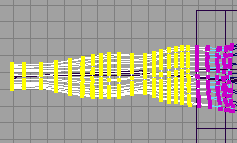
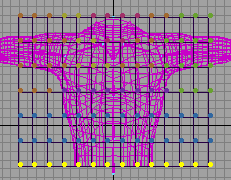
    10. Click and drag with the left mouse button over the cv's which aren't inside the lattice box.  This will select them.  (fig 5)
 
fig. 4
fig. 5
 
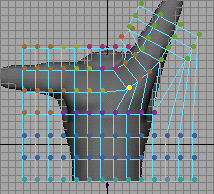
    1. Now on over the left arm, click with the right mouse button and again choose Control Vertex. (fig 6)
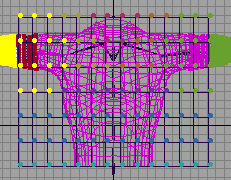
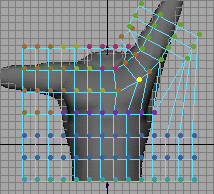
    2. With shift held down, click and drag with the left mouse button over the cvs on the left arm which are not inside the lattice.  (fig 7).
 
fig. 6
fig. 7


spineHip
spineLow
spineMid
spineTop
scapulaL
shoulderL
scapulaR
 
shoulderR
   
Lattice Points Selected: ffd1Lattice.pt[7][4][0:1] 

Cluster Set: scapulaLSet1 (scapulaLCluster1) 

New Weight:  .2 


Lattice Points Selected: ffd1Lattice.pt[8][4][0:1] 

Cluster Set: scapulaLSet1 (scapulaLCluster1) 

New Weight:  .5 
 

Lattice Points Selected: ffd1Lattice.pt[9][4][0:1] 

Cluster Set: scapulaLSet1 (scapulaLCluster1) 

New Weight:  .7 
 

Lattice Points Selected: ffd1Lattice.pt[10][4][0:1] 

Cluster Set: shoulderLSet1 (shoulderLCluster1) 

New Weight:  .2 
 

Lattice Points Selected: ffd1Lattice.pt[11][3][0:1] 

Cluster Set: shoulderLSet1 (shoulderLCluster1) 

New Weight:  .6 
 

Lattice Points Selected: ffd1Lattice.pt[10][5][0:1] 

Cluster Set: shoulderLSet1 (shoulderLCluster1) 

New Weight:  .5 
 

Lattice Points Selected: ffd1Lattice.pt[11][6][0:1] 

Cluster Set: shoulderLSet1 (shoulderLCluster1) 

New Weight:  .5 


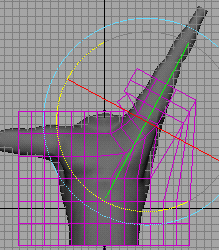
fig. 13
fig. 14
fig. 15