Phenomenon
This section shows the basic workflow to use phenomenon in
Maya.
A phenomenon provides a method to
hide the details of the shading network, and expose the selected few
controls only.
References:
mental ray User Manual, Chapter 2.5
Rendering with mental ray, Chapter 10.
Where to find a phenomenon
A phenomenon appear in the Hypershade > Create mental ray Nodes > Miscellaneous
Step 1. Getting Ready
Make sure the mental ray for Maya plug-in is
loaded:
- Windows > Settings/Preferences > Plug-in
Manager...
- Find Mayatomr and check loaded
Open phenomenon_start.ma.
This is a template scene that is used for
this section.
This file uses mib_illum_ward, mib_texture_rotate, mib_texture_vector,
mib_texture_turbulence to build an anisotropic shading.
We hide the details of the shading network
using a phenomenon node, and expose a few parameters only, so that the
phenomenon node acts like a new anisotropic shader node.
To get the desirable anisotropic look, the
shading network requires the first derivatives of the u texture space.
The example will also demonstrate how to
handle it with phenomenon.
Step 2. Building a phenomenon
- Create
a phenomenon node, and name it anisotropic_mtl
- From the Hypershade > Create mental ray
Nodes > Miscellaneous > mentalrayPhenomenon.
- Create the phenomenon root.
- Creating phenomenon interface
- Let's make mtl.diffuse accessible through
the phenomenon node.
- Keep adding those attribute that you wish to
be exposed to the interface. For example,
- Light array needs special care.
If you want to simply use all the lights in the scene, set mtl.mode
to 2 (exclusive), and do not expose it through the interface.
If you want the phenomenon node to work with Maya light linking, the
other option is to expose the lights array as an interface.
The light array, however, is not connected to the interface through
UI.
Type the following MEL command in the Script Editor.
connectAttr
-f anisotropic_mtl.interface[8] mtl.lights[0]
- Phenomenon option
- The Attribute Editor of the
phenomenon node has Options block.
- version specifies the
version number of the phenomenon.
- Apply Flags
tells the kind of shader the phenomenon should be considered as.
Let's select Material
for this node, because we are building an anisotropic shader.
- Requirements
let us specify special information this phenomenon will need. We need
the first u derivative in order to uderiv (mib_texture_vector)
function correctly. Set
Derivatives 1.
Note that uderiv.select is set to –5, meaning the first derivative of
u vectors.
Step 3. Exporting the phenomenon
Now that the phenomenon node is properly
constructed, we are ready to export it to a .mi file.
The file will contain the phenomenon declaration. When the file is loaded
to Maya, the phenomenon node anisotropic_mtl will be recognized as a shader
node, not any different from other mental ray shader nodes.
- Select
anisotropic_mtl
- Bring up the export
option box from Menu > File > Export All... option box.
- Set File Type to mentalRay.
- Set File Format ASCII.
- Check on Export Selected Items Only.
- From the Predefine Export Filters,
choose Factory Shaders, Phenomenizers.
- Finally, click Export All button, and
specify the file name.
Compare the exported file to aniso_phen.mi.
aniso_phen_mode2.mi is a slightly different version with mtl.mode set to 2.
Step 4. Edit the phenomenon declaration
The phenomenon declaration file just created
is almost ready to be used in Maya.
- Assign a node id
A node id must be assigned to the new phenomenon node. Otherwise, any
Maya scene files using this phenomenon node will not be read correctly
if saved as a binary file. If the node does not have a node id, mental
ray for Maya will assign a temporary id, which is not guaranteed to be
the same all the time. So the scene must be saved in ASCII format
only, or a unique node id should be assigned.
- The following is the
syntax for assigning a node id to a shader.
|
declare ...
...
#:
#: nodeid 55555
# This is the node ID for binary Maya files.
#: end declare
|
- The derivative statement at the end of the
file is followed by "space 0". Remove "space 0".
- See aniso_phen_finish.mi for the final
result.
Step 5. Loading the phenomenon node
To use the phenomenon node we've just created, the phenomenon declaration
must be loaded.
There are two ways to load the phenomenon declaration:
o
Using Shader Manager
- Bring up the Shader Manager from Menu
> Window > Rendering Editors > mental ray > Shader
Manager.
The Shader Manager lists .mi files in MI_CUSTOM_SHADER_PATH. The
default value for MI_CUSTOM_SHADER_PATH is /mentalray/include.
It can be modified from Maya.env.
If the phenomenon declaration file is not in the
MI_CUSTOM_SHADER_PATH, click the Browse button, and locate the file.
- Restart Maya
- Another option is to put the .mi file in
MI_CUSTOM_SHADER_PATH, and restart Maya. mental ray for Maya loads
all the shader and phenomenon declaration found in
MI_CUSTOM_SHADER_PATH on start up.
You must restart Maya for this to work.
- If you chose this option, edit the
maya.rayrc file before restarting Maya. It is not required to load the
phenomenon node, but is a necessary step to be able to render a scene
with the node.
See step 7.
To see whether the phenomenon is correctly
loaded, open the Hypershade > Create mental ray nodes.
anisotropic_mtl should show up in Materials section.
Depending on the Apply Flags specified in Step 2, Phenomenon option,
the new node appears in corresponding section.
If for some reason the new node does not show up in the Hypershade, check
the Script Editor and output window for any error messages.
Step 6. Using the phenomenon node
Open Phenomenon_start2.ma
This is the same scene as the one we started with, except that it does not
have the shading network. We will use the new phenomenon node on the
sphere.
Step 7. Rendering with the phenomenon node
Render
with mental ray.
You will see the following error in the script editor:
// Error:
(Mayatomr) : mental ray has stopped with errors, see the log //
// Info (Mayatomr): Aborted //
The output window shows more information about what went
wrong.
API 0.0 error
301031: call to undeclared function "anisotropic_mtl"
API 0.0 error 301032: while defining material
"anisotropic_mtl1SG": undefined shader
"anisotropic_mtl1"
Even though the phenomenon node is loaded (in step 5) and
recognized by the mental ray for Maya, the actual rendering engine does not
know this node yet.
Do one of the following:
- Quit Maya
- Quit Maya, and edit the maya.rayrc file.
maya.rayrc contains the shader libraries (DSO files) and shader
declarations (.mi files) that the mental ray needs to know to render.
This file is located at /mentalray/maya.rayrc
- For example, maya.rayc can be edited like
the followings:
|
. . .
registry
"{MRMAYA_START}"
link "{MAYABASE}/lib/base.{DSO}"
link "{MAYABASE}/lib/physics.{DSO}"
link "{MAYABASE}/lib/mayabase.{DSO}"
link "{MAYABASE}/lib/contour.{DSO}"
mi
"{MAYABASE}/include/aniso_phen_finish.mi"
mi "{MAYABASE}/include/mayabase.mi"
mi "{MAYABASE}/include/base.mi"
mi "{MAYABASE}/include/physics.mi"
mi "{MAYABASE}/include/contour.mi"
echo "mental ray for Maya - startup
done"
end
registry
.
. .
|
. . .
registry
"{MRMAYA_START}"
link "{MAYABASE}/lib/base.{DSO}"
link "{MAYABASE}/lib/physics.{DSO}"
link "{MAYABASE}/lib/mayabase.{DSO}"
link "{MAYABASE}/lib/contour.{DSO}"
mi "{MAYABASE}/include/mayabase.mi"
mi "{MAYABASE}/include/base.mi"
mi "{MAYABASE}/include/physics.mi"
mi "{MAYABASE}/include/contour.mi"
echo "mental ray for Maya - startup
done"
end registry
$lookup
"{MRMAYA_START}"
$include
"{MAYABASE}/include/aniso_phen_finish.mi"
.
. .
|
- Restart Maya.
If you chose to restart Maya, you may want to combine step 5 here -
place the .mi file in MI_CUSTOM_SHADER_PATH or edit Maya.env to add a
new path to MI_CUSTOM_SHADER_PATH.
- Using Mayatomr –addIncludes
- It is possible to add a new .mi file
interactively instead of restarting maya. But this has a restriction.
- Type the following in the script editor:
Mayatomr -addIncludes ""
- This command works only if mental ray is
properly initialized, after an image is rendered for example.
- If you see an error at this command, disconnect
the phenomenon from the shading engine. Mental ray should able to
render now, and initialized.
- Try the MEL command above one more time.
- Using Mayatomr –updateRayrc
- Similar to "Mayatomr
-addIncludes", this command reloads the maya.rayrc file interactively.
The same limitation applies, so it should be used after mental ray is
initialized.
- Open /mentalray/maya.rayrc,
and add
mi "<full path to the mi
file>"
as described above.
- Type the following in the script editor.
Mayatomr -updateRayrc
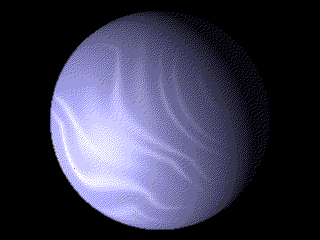
Now Render
again.
|
|
|
phenomenon_finish
|
|