|
Procedural Texture Shader
This section shows the basic workflow for mental ray for Maya
image texture shaders.
Right-mouse button click a texture shader, then select
"Assign Texture's material to selection" to create a new Lambert
shader with the texture shader connected to the color attribute of the Lambert,
then assign it to the selection.
Step 1. Getting Ready
Make sure the mental ray for Maya plug-in is
loaded:
- Windows > Settings/Preferences > Plug-in
Manager...
- Find Mayatomr and
check loaded
.Creat a plane. Right-mouse button click a texture shader, then select "Assign
Texture's material to selection" to create a new Lambert
shader with the texture shader connected to the color attribute
of the Lambert, then assign it to the selection.
and assign it a lambert
Step 2. Create a texture shader
- Create a checkerboard
shader
- Hypershade
> Create mental ray Nodes -> Textures
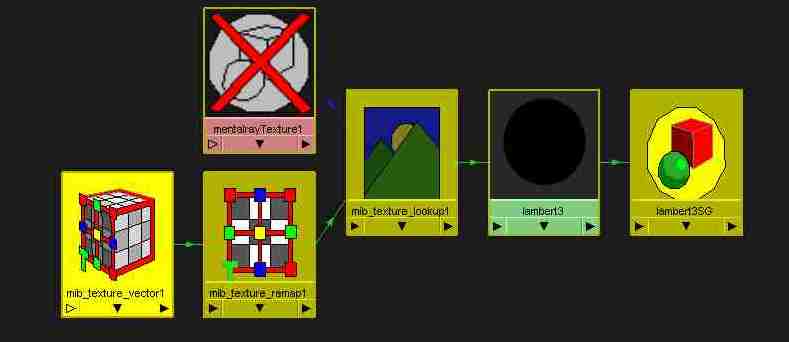
- Select mib_texture_lookup
- Assign the texture to a material shader
- We’ll use the default lambert shader
- Ctrl
MMB drag and drop mib_texture_lookup
to lambert1.
- mib_texture_lookup1.outValue
should is connected to lambert1.color.
- In attribut editor window of mib_texture_lookup1
choose
mental ray texture to load and image in tex field
Step
3. Setting up texture space
We will use mib_texture_vector and mib_texture_remap to setup the texture space.
Then, render
with mental ray.
A black and white checker appears in the Render View window.
|